How to Download Instagram Videos Without Watermark
The watermark-free file is the original upload — not a screen recording, not a repost with someone else's logo stamped on it. Here is how to actually get it, what to avoid, and where the honest limits are.
Why Instagram Videos Carry a Watermark in the First Place
A watermark is a small logo or username burned into the corner of a video. On Instagram it shows up in two different ways, and knowing which one you are dealing with decides which removal method can possibly work.
The first kind is added by Instagram itself. When you download a reel through Instagram's own share options, or when a reel gets distributed with the platform's branding, the file carries the Instagram logo and the original creator's handle. Instagram does this deliberately: it is attribution, and it is advertising. Every watermarked video that travels to another platform carries Instagram's name with it.
The second kind is added by third-party repost apps. Dozens of "repost for Instagram" tools let you share someone's video, but the free version stamps their own logo across the frame — sometimes subtly in a corner, sometimes as an animated bug that drifts around so it cannot be cropped out. That watermark was never on the original video. The app put it there as the price of using the free tier.
Here is the key insight most guides skip: a watermark is baked into the pixels. Once it is rendered into the video file, no website can "remove" it and give you the clean original underneath, because the original pixels under the logo are gone — replaced by logo pixels. Any tool promising to erase a burned-in watermark is either blurring the corner, cropping the frame, or using AI to guess what was behind it. All three degrade the video.
The real way to get an Instagram video without a watermark is to never let the watermark into the file at all: fetch the platform's original upload before any app stamps it. That is what the methods below do, and it is why the result is full quality instead of a damaged crop.
What Actually Works: The Three Ways to Save a Video
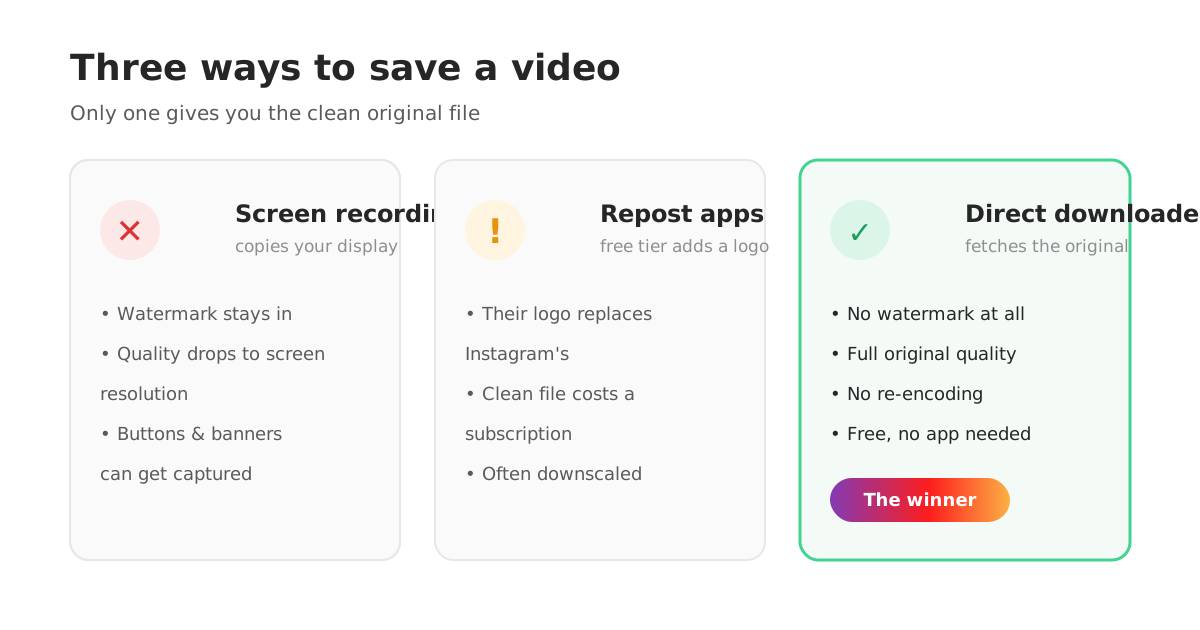
Search "download instagram video without watermark" and you will find a hundred tools that all look the same. Underneath, there are only three real methods — and only one of them gives you the clean original file.
Method 1: Screen recording. Play the video and record your screen. It works on every phone ever made, and it is the method most people try first. It is also the worst. You capture your screen's resolution instead of the video's, so a 1080p upload becomes whatever your display was showing at that moment. System sounds, notification banners and the playback controls can all end up in the recording. And if the video you played already had a watermark, your recording has it too — screen recording cannot remove anything, it can only copy what is there, worse.
Method 2: Repost apps. These pull the video through Instagram's systems and hand you a file — with their own branding added unless you pay. You have simply traded Instagram's watermark for the app's watermark, and the paid "pro" versions that remove it are subscriptions for something you can get free elsewhere.
Method 3: A direct downloader. You paste the video's link, the tool fetches Instagram's original uploaded file — the same file Instagram serves to its own apps — and hands it to you untouched. No re-encoding, no added logo, no cropped corners. The quality is whatever the creator uploaded, because nothing in the chain modified it. This is the only method that produces a genuinely watermark-free, full-quality file, and it is the method this guide walks through.
A quick word on the "watermark remover" sites you will also meet: tools that claim to erase a logo from an already-watermarked video. What they actually do is smear, blur or AI-inpaint the corner where the logo sat. On a busy video background the result looks like a smudge that draws more attention than the watermark did. They cannot recover the original pixels. If the file already has a burned-in mark, the honest answer is that the clean version is gone — get the original instead, using the steps below.
Save a Watermark-Free Instagram Video in 4 Steps
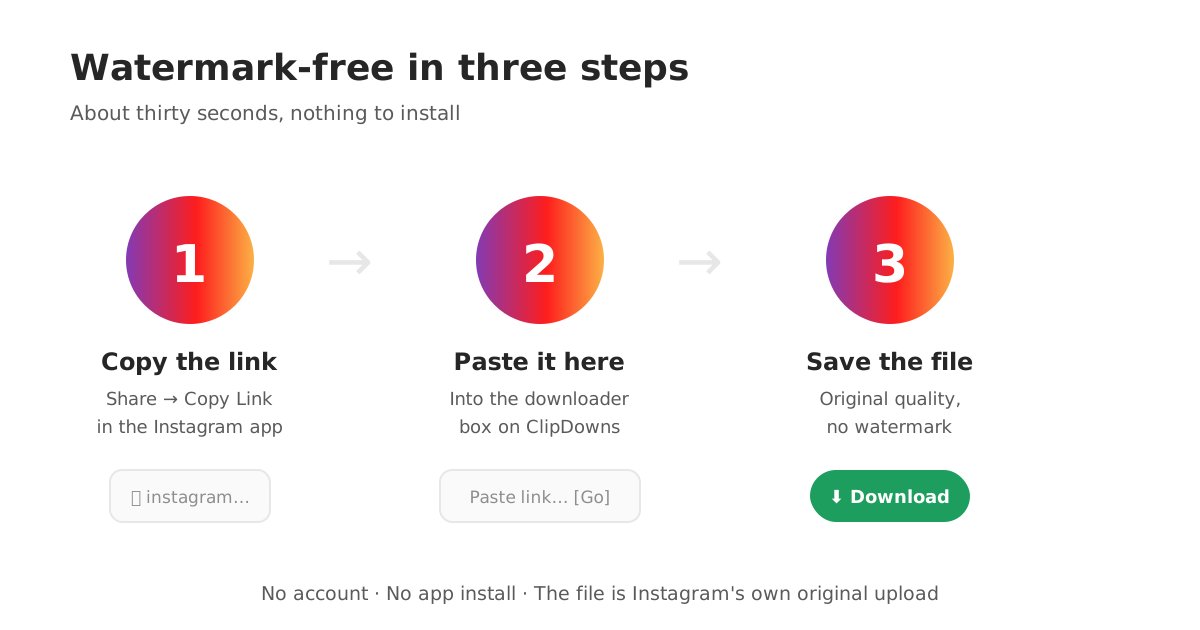
This takes about thirty seconds. You need the Instagram app (or the website) and nothing installed.
- 1
Copy the video link
Open the reel or video post in Instagram, tap the share icon (the paper plane), and choose Copy Link. The link is now on your clipboard.
- 2
Paste it into the downloader
Open the ClipDowns Instagram video downloader and paste the link into the box. No account, no login, no app to install.
- 3
Pick your quality and download
Choose the available quality — usually the original HD upload — and hit download. The file you get is Instagram's own upload, before any watermark was added.
- 4
Check the file
Play it back. No logo in the corner, no username bug, no cropped edges — just the video as the creator uploaded it. Save it wherever you keep your files.
Reels, Posts, and Stories: What You Can Save Clean
Not every Instagram surface behaves the same, so here is the honest breakdown of what "without watermark" means for each format.
Reels. This is the big one — most "without watermark" searches are about reels. Reels downloaded through Instagram's own options carry the watermark and handle. Fetched with a direct downloader from the reel's link, you get the clean upload. Reels are also where quality matters most, because they are usually shot vertically at full phone resolution.
Video posts. Classic in-feed video posts have no platform watermark on the original file at all — the watermark problem people hit here almost always comes from repost apps, not Instagram. Paste the post link and the file comes down clean.
Stories. Stories are trickier: they expire after 24 hours, and many carry stickers, text and music overlays the creator added deliberately — those are part of the video, not a watermark, and no downloader can or should strip them. But the file itself downloads without any platform branding, which is what most people mean when they search for story downloads.
Private accounts. The line that matters: if an account is private, its videos are not publicly accessible, and no legitimate downloader can fetch them. Tools claiming otherwise are scams — usually credential phishing. Everything in this guide applies to public content only.
Quality: What "Without Watermark" Really Gets You
"Without watermark" and "full quality" travel together, and understanding why will save you from half the bad tools out there.
Instagram stores the exact file the creator uploaded (compressed once, on upload, by Instagram's own pipeline — that part is unavoidable and identical for everyone). A direct downloader hands you that stored file bit-for-bit. The resolution, the frame rate, the audio — all exactly as uploaded. Nothing in the middle re-encoded it, because nothing in the middle touched it.
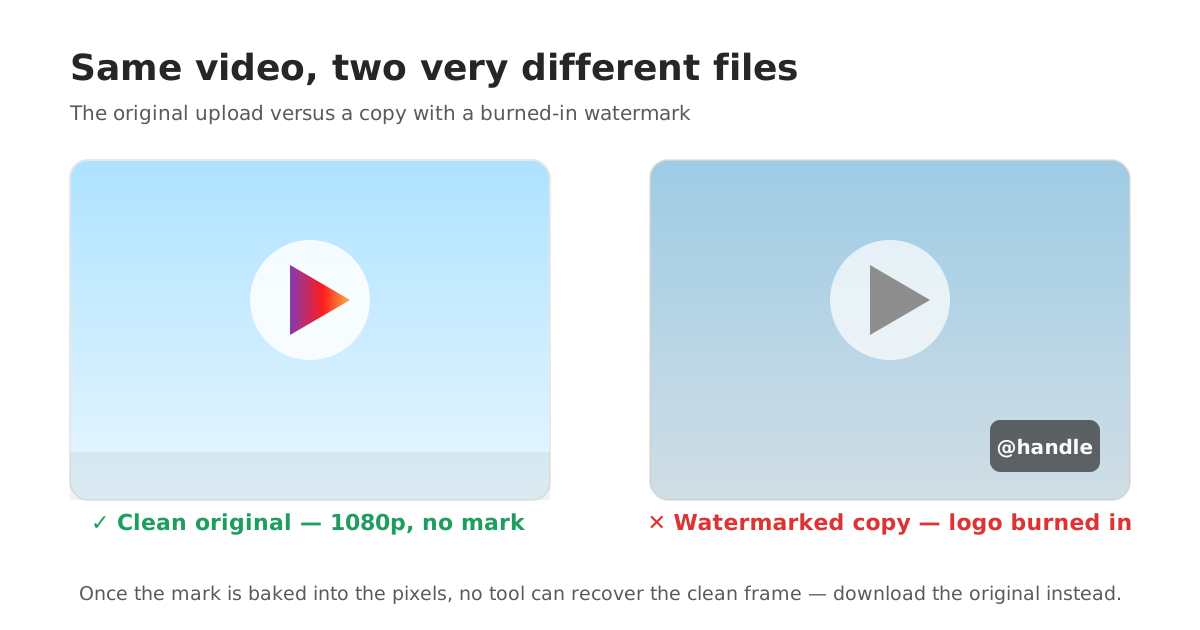
Compare that with every other route. Screen recording re-encodes in real time at your screen's resolution — a 1080×1920 reel becomes a mushy 720p-ish capture with compression artifacts. Repost apps routinely downscale to save their own bandwidth. "Watermark remover" tools re-encode the whole file just to smear one corner, degrading everything to fix a patch.
So the quality test is simple: if a method gives you the file Instagram itself stores, you have the best version that exists outside the creator's camera roll. If a method records, re-encodes or "cleans" anything, you have a worse version with extra steps. Download the original; do not manufacture a copy of a copy.
The Honest Rules: When Downloading Is Fine and When It Is Not
A guide like this would be irresponsible without the other half of the picture. Downloading a video is a tool; what you do with the file is where right and wrong live.
Clearly fine: saving your own content as a backup. Downloading a video you have permission to reuse — a client deliverable, a collaborator's reel they asked you to repost, a friend's video they sent you to save. Offline viewing for yourself: downloading a tutorial or recipe reel to watch on a flight.
Not fine: re-uploading someone else's video as your own, with or without the watermark. Stripping a creator's handle so you can pass their work off as yours is theft with extra steps, and it is exactly the behavior watermarks exist to discourage. Re-posting private-account content that was shared with a limited audience. Using anyone's likeness commercially without consent.
The gray zone — credit properly: reaction videos, commentary and compilations. These live under fair-use-style exceptions in many places, but the norms that keep you out of trouble are simple: add real commentary instead of just re-uploading, credit the creator visibly, link back to the original, and take it down if they object. Creators are far more generous with re-use when they are credited than when they discover it.
None of this is legal advice, and the rules differ by country. But the principle is universal: the downloader does not know or care whose video it is — you do. Download freely; publish responsibly.
When a Download Fails: Quick Fixes That Actually Help
Sometimes a link just will not download. Before assuming the tool is broken, run through the real causes in order.
The link is wrong. The most common failure. Make sure you copied the link to the video itself — from the share menu on the reel or post — not a profile link, not a link to the Explore page, and not a link with extra tracking parameters mangled by another app. Re-copy it directly from Instagram and try again.
The post was deleted or the account went private. Downloaders fetch what Instagram publicly serves. If the video is gone or the account flipped to private after you copied the link, there is nothing to fetch. No tool can fix this; the content is simply no longer public.
Age-restricted or login-walled content. A small slice of videos requires login to view. Public downloaders cannot reach those either — this is Instagram's wall, not the tool's.
Browser hiccups. If the button spins forever, the boring fixes work: hard-refresh the page, try a different browser, disable aggressive ad-blockers for the downloader page (some block the file fetch itself), and check you are not on a network that filters downloads.
One thing that is never the fix: downloading three more "watermark remover" apps and hoping. If the link is valid and public and the downloader still fails, wait an hour — Instagram rate-limits aggressively, and patience beats app-hopping every time.
Ready to try it? The Instagram video downloader on the homepage handles reels and video posts, and the reels downloader is there if reels are all you save. Paste a link and keep the original — watermark-free, full quality, thirty seconds.
No-Watermark Download FAQs
How do I download an Instagram video without watermark?
Copy the video's link from Instagram's share menu, paste it into a direct downloader like the ClipDowns video downloader, and save the file. You receive Instagram's original upload before any watermark was added — no screen recording, no repost app, no cropped corners.
Can I remove the watermark from an already-downloaded Instagram video?
Not cleanly. A burned-in watermark replaced the original pixels, so 'remover' tools can only blur, crop or AI-guess the corner — all of which degrade the video. The real fix is downloading the original file before the watermark was added, using the steps in this guide.
Does Instagram add a watermark to downloaded reels?
Reels saved through Instagram's own options carry the Instagram logo and the creator's handle. But the original uploaded file has no such mark — a direct downloader fetching that file gives you the clean version.
Is downloading Instagram videos without watermark legal?
Downloading for personal offline viewing or backing up your own content is generally fine; re-uploading someone else's video as your own is not. Credit creators, get permission for reposts, and respect private accounts. Rules vary by country — this is guidance, not legal advice.
Why is my screen recording lower quality than the original video?
Screen recording captures your display's output, not the video file — resolution drops to what your screen showed, and the phone re-encodes it in real time. A direct download skips all of that by fetching Instagram's stored original instead.
Can I download private Instagram videos without watermark?
No. Private account content is not publicly accessible, and no legitimate tool can fetch it. Any site claiming private downloads is a scam — most commonly credential phishing. This guide covers public content only.
Do I need to install an app to download without watermark?
No. The method in this guide runs entirely in your browser: copy the link, paste it on the downloader page, save the file. No install, no account, no subscription.
Will the downloaded video work on WhatsApp and TikTok?
Yes. The file is a standard MP4 at the creator's original resolution, which plays and uploads everywhere — and because there is no burned-in Instagram handle, reposting it elsewhere does not advertise a platform you are not posting on.