How to Copy Instagram Captions
Instagram blocks text selection on captions, so the copy button you expect simply is not there. Here are the methods that actually work — including the one that gives you the full text, hashtags, emojis and line breaks in one click.
Why Instagram Will Not Let You Copy a Caption
Try it right now: open any post in the Instagram app and long-press the caption text. Nothing happens. No selection handles, no copy option. Instagram deliberately disables text selection on captions — in the app, and in most of the mobile web view too.
Why would the app block something so basic? Partly it is interface design: captions sit inside a feed built for tapping and scrolling, and selectable text would fight with every other gesture. Partly it is control. Unselectable text is harder to scrape, harder to mass-copy, and keeps people inside the app instead of extracting content from it. Whatever the mix of reasons, the result is the same for you: a caption you can read but cannot touch.
And captions are worth copying. A creator's caption can hold a recipe's full ingredient list, a workout's sets and reps, a business's price list, thirty perfectly researched hashtags, or a quote you want exactly right — not retyped from memory with three typos. Retyping a 200-word caption full of emojis and hashtags by hand is nobody's idea of a good time, and screenshots are barely better: you cannot paste a picture into your notes.
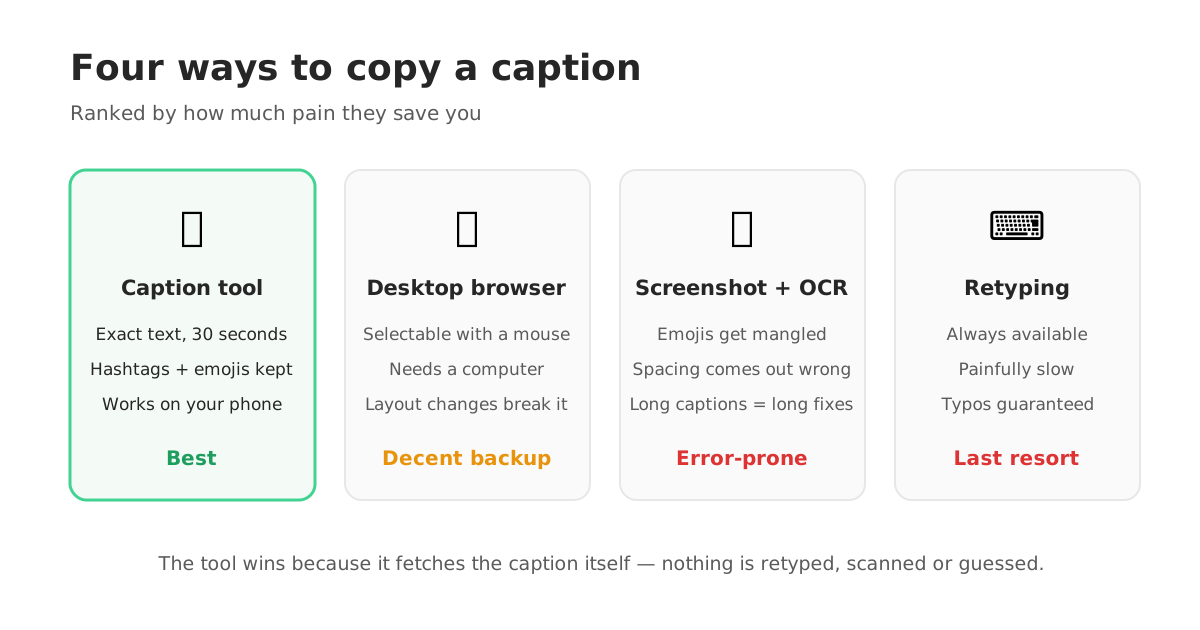
So people developed workarounds. Some are decent. Some are miserable. Here is the honest rundown of every method, ranked by how much pain it saves you.
The Four Ways to Copy a Caption, Honestly Ranked
Method 1: A caption copy tool. Paste the post's link into a tool built for this, and it pulls the caption text for you — complete, exactly as written, hashtags, emojis, mentions and line breaks all preserved, ready to copy with one click. Thirty seconds, perfect result, nothing installed. This is the method the steps below use, and it is not close.
Method 2: The desktop browser trick. Open the post on a computer at instagram.com. On desktop, captions are usually selectable with a mouse — drag, copy, done. It genuinely works, with two catches: you need to be at a computer, and Instagram periodically changes the desktop layout, so some posts still resist selection. A solid backup method, useless on the bus.
Method 3: OCR — screenshot, then extract. Screenshot the caption, then run the image through an OCR tool (Google Lens, your phone's built-in text recognition, an online OCR site). The text comes out — mostly. OCR mangles emojis into nothing, drops hashtags' spacing, confuses similar characters, and chokes on stylized fonts. For a two-line caption it is fine. For a long caption with thirty hashtags, you will spend longer fixing the output than retyping would have taken.
Method 4: Retype it. Always available, always works, always slow. Fine for one sentence. For anything longer it is the method of last resort, and the reason the other three exist.
One more honest note: every method here works on public posts. A caption copy tool fetches what Instagram publicly serves for a post link. Private account content is not publicly served, so it cannot be fetched — by this tool or any other. Sites claiming otherwise are the usual scam pattern.
Copy Any Caption in 4 Steps
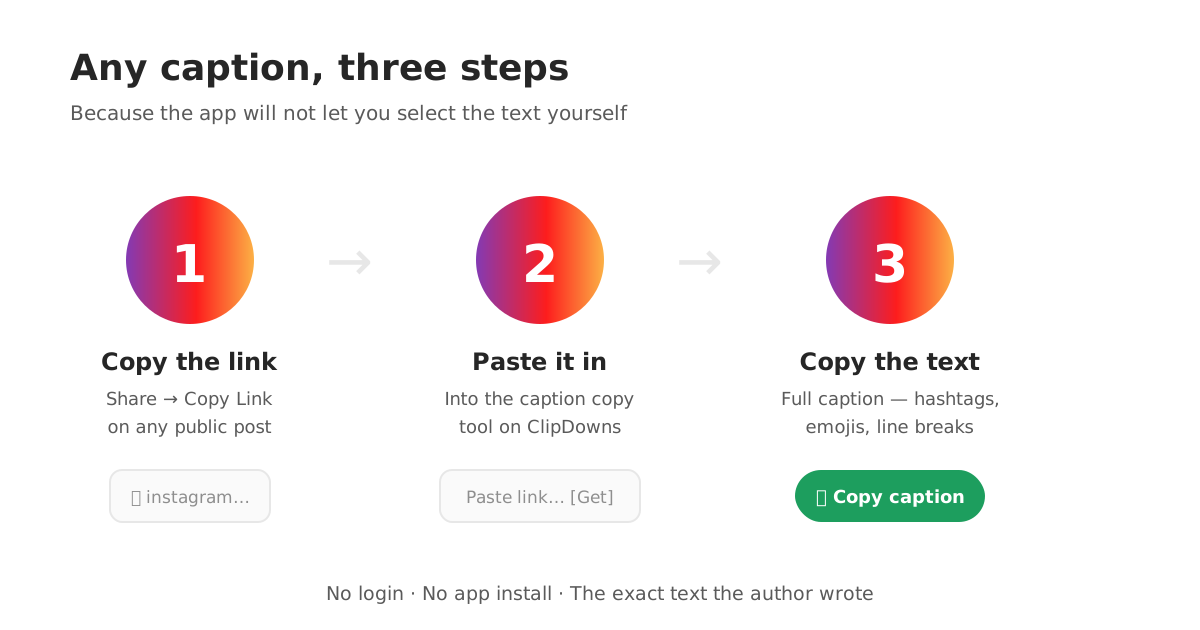
The whole thing takes about thirty seconds, most of it finding the post you wanted.
- 1
Copy the post link
Open the post or reel in Instagram, tap the share icon, and choose Copy Link. Any public post or reel works.
- 2
Paste it into the caption tool
Open the ClipDowns Instagram caption copy tool and paste the link in. No account, no login, no app to install.
- 3
Get the full caption
The tool pulls the complete caption text — hashtags, emojis, mentions and line breaks exactly as the author wrote them.
- 4
Copy with one click
Hit the copy button and the text is on your clipboard, ready to paste into your notes, your own post, or a translator.
What People Actually Do With a Copied Caption
Copying a caption is never the goal by itself. Here is what the text is actually for — the legitimate uses that make this a daily tool for creators and businesses, not a novelty.
Hashtag research. The fastest way to learn what hashtags work in your niche is to study what successful accounts actually use. Copy a competitor's caption, extract the hashtag block, and you have real data — which tags, how many, in what order — instead of guesses from a generator.
Templates for your own posts. Found a caption structure you love — the hook, the spacing, the call to action at the end? Copy it, study the skeleton, and write your own words into the same shape. Structure is not copyrightable content; the words you fill it with are yours.
Translation. A caption in a language you are learning, or a supplier's post in a language you do not read at all. Copied text pastes straight into a translator. A screenshot does not.
Saving the useful stuff. Recipes, workout plans, price lists, event details, book recommendations — captions are where creators hide the substance. Copied into your notes, it is searchable forever. Left in the app, it is buried under tomorrow's feed.
And the line nobody should cross: copying a caption to repost it as your own words is plagiarism, and readers can smell it. Research, templates, translation, saving — all fair. Someone else's voice with your name on it — not fair, and not smart: the original is one search away.
The Line Break Problem (and Why Copying Fixes It)
Half the people who learn to copy captions come for a different reason entirely: formatting. Instagram is infamous for crushing carefully spaced captions into a single wall of text. You write a caption with clean paragraphs, post it, and the app serves it as one dense block nobody wants to read.
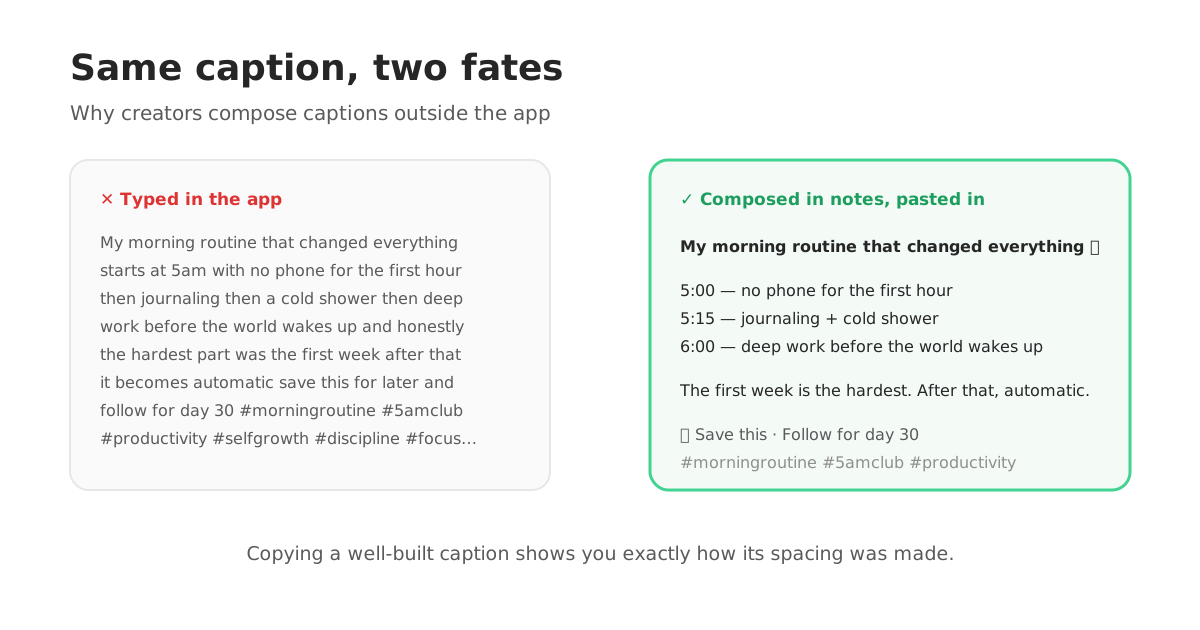
The reliable fix used by creators everywhere: write and format the caption outside Instagram first — in your notes app, with real line breaks — and paste it in. Captions composed externally keep their spacing far more reliably than captions typed into the app. And this is where copying comes back in: when you find a caption whose formatting is perfect — airy paragraphs, a clean hashtag block separated at the bottom — copying it shows you exactly how it was built. The spacing, the separators, where the hashtags live. You are not stealing words; you are studying carpentry.
Two formatting habits worth stealing from every well-built caption: keep the first line a genuine hook, because it is all that shows before the "more" cut — and park the hashtag block at the very end (or in the first comment), so the caption itself reads like writing, not like a tag dump.
When a Caption Will Not Copy: Quick Checks
The link is to the wrong thing. The tool needs the link to the specific post or reel — from that post's share menu. A profile link or a link to your feed will not work. Re-copy it from the post itself.
The post is private or deleted. If the account is private, the caption is not publicly served and cannot be pulled. If the post was deleted, there is nothing left to pull. Both are dead ends for every tool, not just this one.
The caption looks empty. Some posts genuinely have no caption, or a caption that is only an emoji or two. The tool returns what the author wrote — if that was three words and a fire emoji, that is the whole caption.
Emojis look different after pasting. Emoji rendering differs between phones and apps — the text is identical, the pictures your device draws for it are its own. Nothing was lost in the copy.
Ready? The Instagram caption copy tool is right there — paste a post link and take the text. And if the caption you want lives on a reel you also want to save, the reels downloader handles the video itself.
Caption Copy FAQs
How do I copy an Instagram caption?
Copy the post's link from the share menu, paste it into a caption copy tool like the one on ClipDowns, and the full caption text appears ready to copy — hashtags, emojis and line breaks included. Instagram's app blocks direct text selection, which is why the tool exists.
Why can't I just long-press to copy a caption in the app?
Instagram disables text selection on captions in the app by design. Long-pressing does nothing on caption text. Your options are a caption copy tool, selecting the text on desktop instagram.com, OCR from a screenshot, or retyping.
Does the copied caption keep hashtags and emojis?
Yes — a caption copy tool returns the exact text the author wrote: hashtags, emojis, mentions and line breaks all preserved. That completeness is exactly what OCR-from-screenshot methods cannot match.
Can I copy captions from a private account?
No. Private posts are not publicly served, so no tool can fetch their captions. Anyone claiming private-account caption access is running a scam. Public posts only.
Is it okay to copy someone's caption?
For research, hashtag study, templates, translation and personal saving — yes, that is normal practice. Republishing someone's words as your own is plagiarism. Copy the structure and the data; write your own words.
How do I keep line breaks in my own Instagram captions?
Compose the caption outside Instagram (notes app) with real line breaks and paste it in — externally composed captions keep their spacing far more reliably. Studying a copied, well-formatted caption shows you the exact spacing pattern to reuse.
Can I copy a caption from a reel?
Yes. Reels carry captions the same way posts do. Copy the reel's link, paste it into the caption tool, and you get the reel's full caption text.
Do I need to install an app or log in?
No. The caption tool runs in your browser: paste the post link, get the text, copy it. No install, no Instagram login, nothing to sign up for.